Installing the program in MetaTrader 5
There is a shorter way. The installer does steps 1 to 3 for you: it finds your MetaTrader installations, lets you pick, and leaves the program where it belongs. This page is the by-hand route, in case you would rather do it yourself or the installer does not work for you.
One file, one double click. No DLLs, no desktop application, and no giving your password to anyone.
Did your broker give you MetaTrader 4? Then your guide is Installing the program in MetaTrader 4.
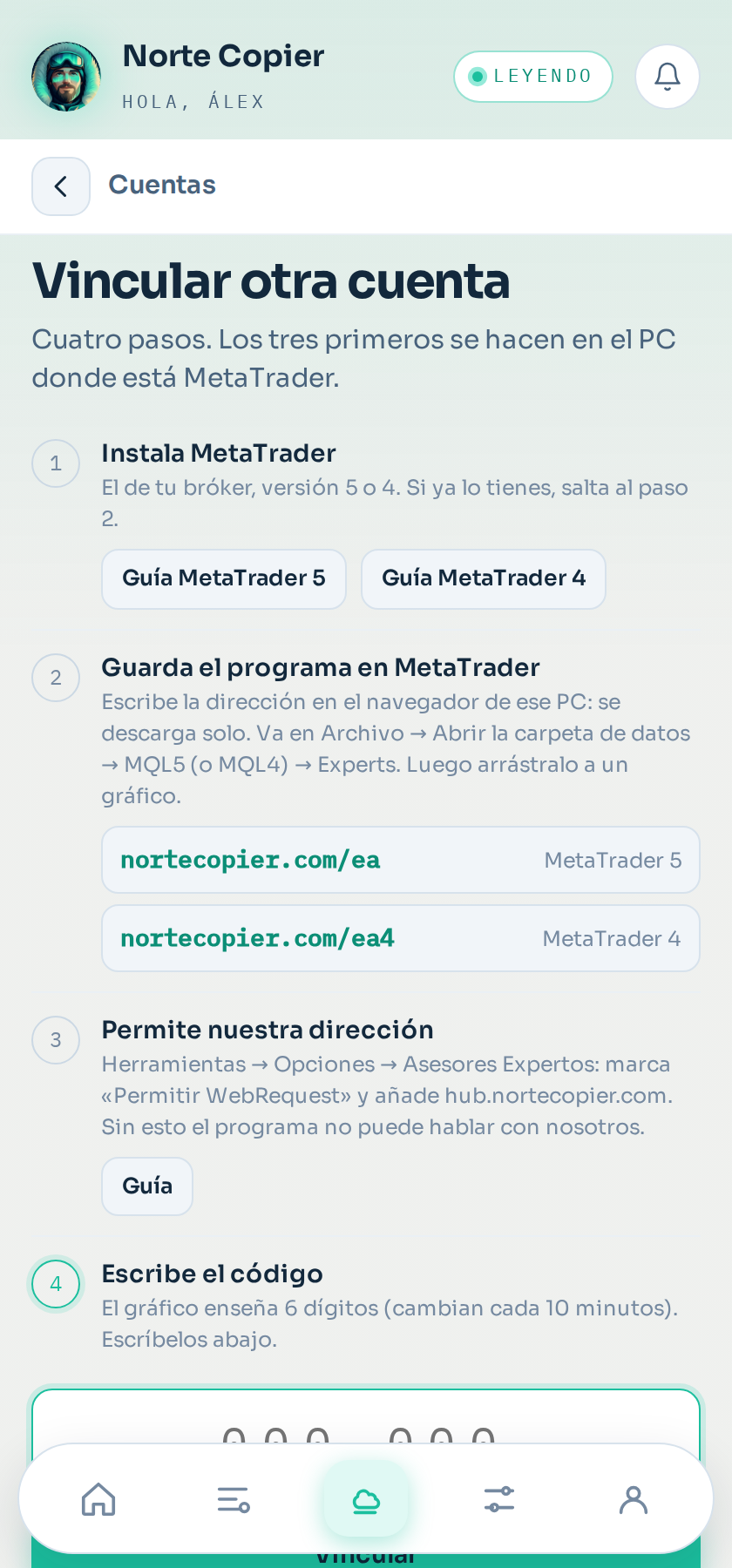
1. Download the program on the computer that runs MetaTrader
Quickest: on that computer, open the browser and type nortecopier.com/ea. NorteCopier.ex5 downloads straight away.
The bot can also send it: in @nortecopierbot, Link an account; then save it from Telegram Desktop on that same computer. There is no installer: a single file copied into MetaTrader, nothing to run.
2. Put it in the MetaTrader folder
In MetaTrader 5: menu File → Open Data Folder. A folder opens; go into MQL5 and then into Experts (that is the folder's real name, even where the Navigator shows it as Expert Advisors). Copy the file there.
3. Refresh the list
Back in MetaTrader, in the Navigator panel (Ctrl+N if you cannot see it), right-click on Expert Advisors and choose Refresh. NorteCopier should appear.
4. Drag it onto a chart
Open any chart — the instrument and timeframe do not matter, the program does not trade that chart — and drag NorteCopier onto it.
In the window that appears, on the Common tab, tick Allow Algo Trading. Accept.
5. Allow the address
The first time, the program will tell you an address needs allowing. It is a MetaTrader checkbox and it is done once: see Allowing the server address.
6. Link it
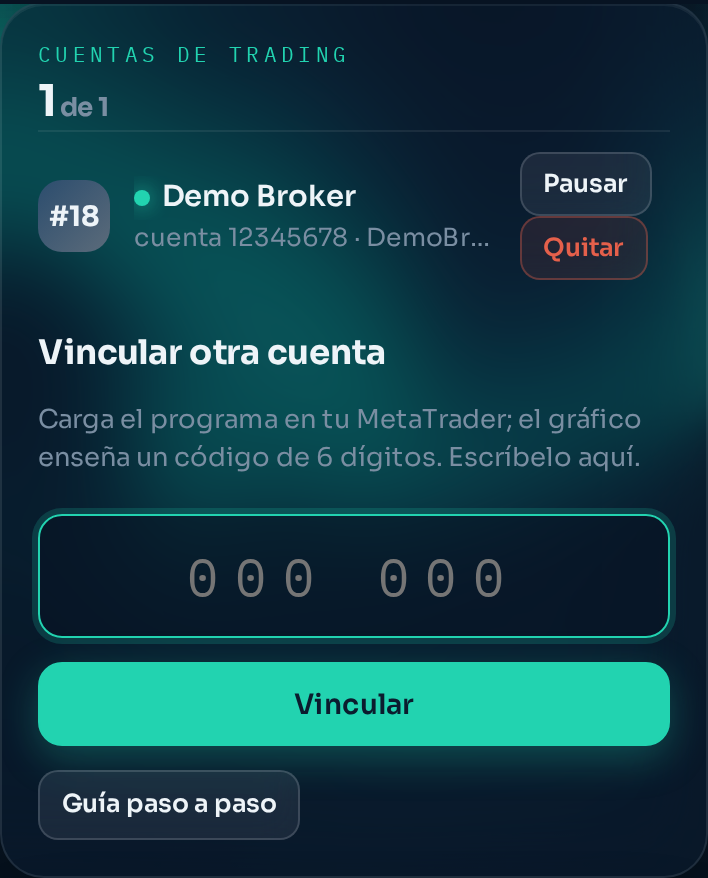
The panel the program draws on the chart shows a six-digit code. In the app, Accounts → On your computer, type it and tap Link. That pairs them. See Linking your account.
Checking it went well
In the app, the account shows up with its broker, its number and a green dot. On the chart, the program's panel goes from “waiting to be linked” to showing your plan and your channels. If the panel says it has no connection, the most likely causes are the address not being allowed yet (step 5) or the Algo Trading button in MetaTrader's top bar not being green.
Still stuck?
Write to us in the bot and a person reads it. Tell us what you expected and what happened.
Write in Telegram